.png)
Online Payments Portal
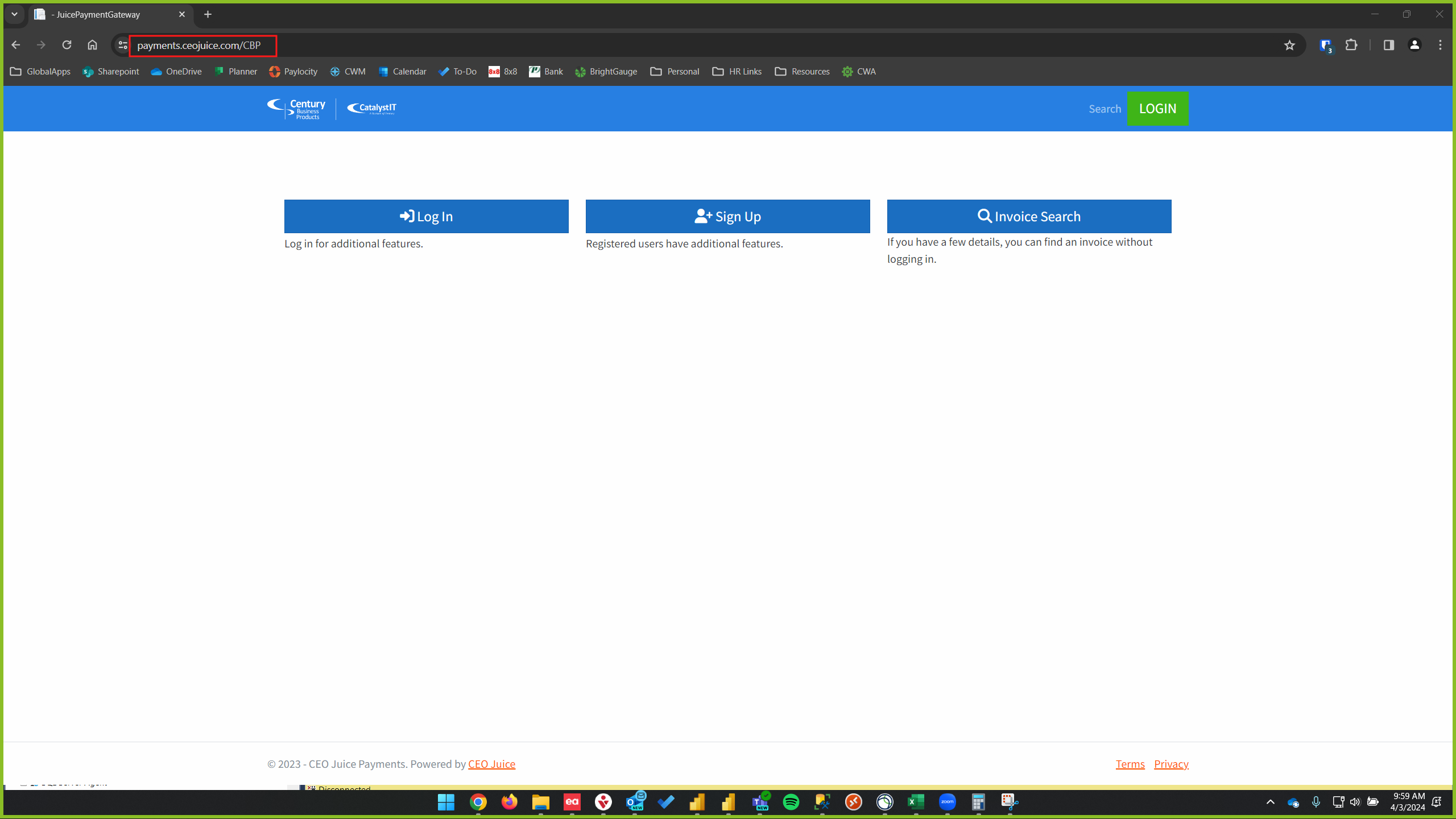
URL for Payments Portal
You can get to the URL for the portal by going to payments.cbpnow.com. This will take you to the payments portal which you will see the final URL as payments.ceojuice.com/CBP.
The payments portal is separate from our Customer Portal where you can order toner and request service calls from. This Online Payments Portal is provided by CEO Juice which we are partnering with to provide a streamlined payments solution for our services.
Sign up for an Account
If you do not currently have any account, you can click Sign Up in the middle of the screen. Otherwise you can just do a search for an invoice without signing up for an account. If you are unable to find an invoice, you can email us at helpdesk@cbpnow.com or give us a call at (800) 529-1950.
You will get an email from help@ceojuice.com. To complete your account registration, you will need to confirm your email address by clicking the link in the email. After you do this, you will be able to go back into payments.cbpnow.com or payments.ceojuice.com/CBP and log into your newly created account.
The email address you will use is the email that you have selected to receive invoices. If you are unsure about what email address was provided, please contact us.
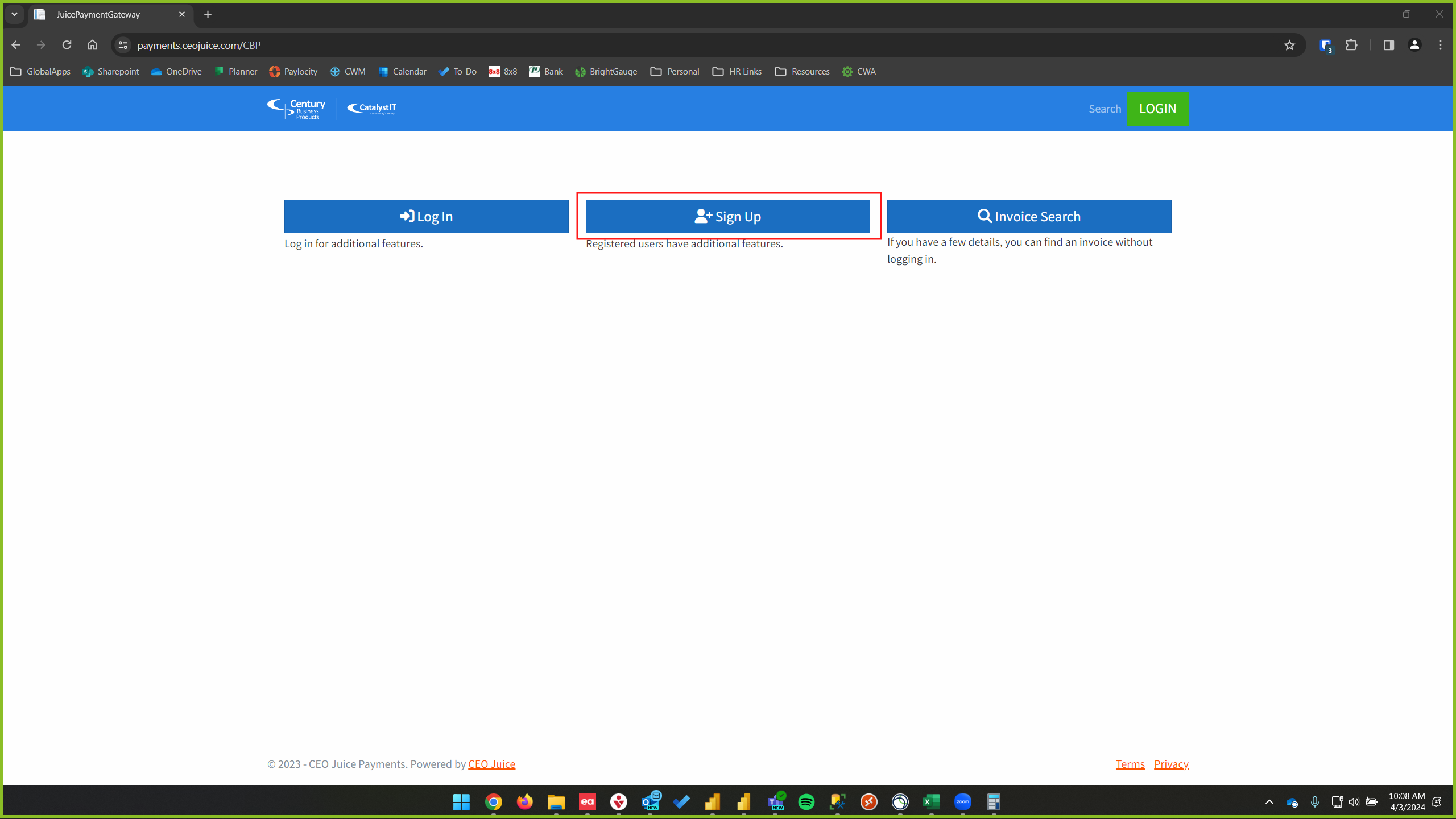
Click Sign Up Button
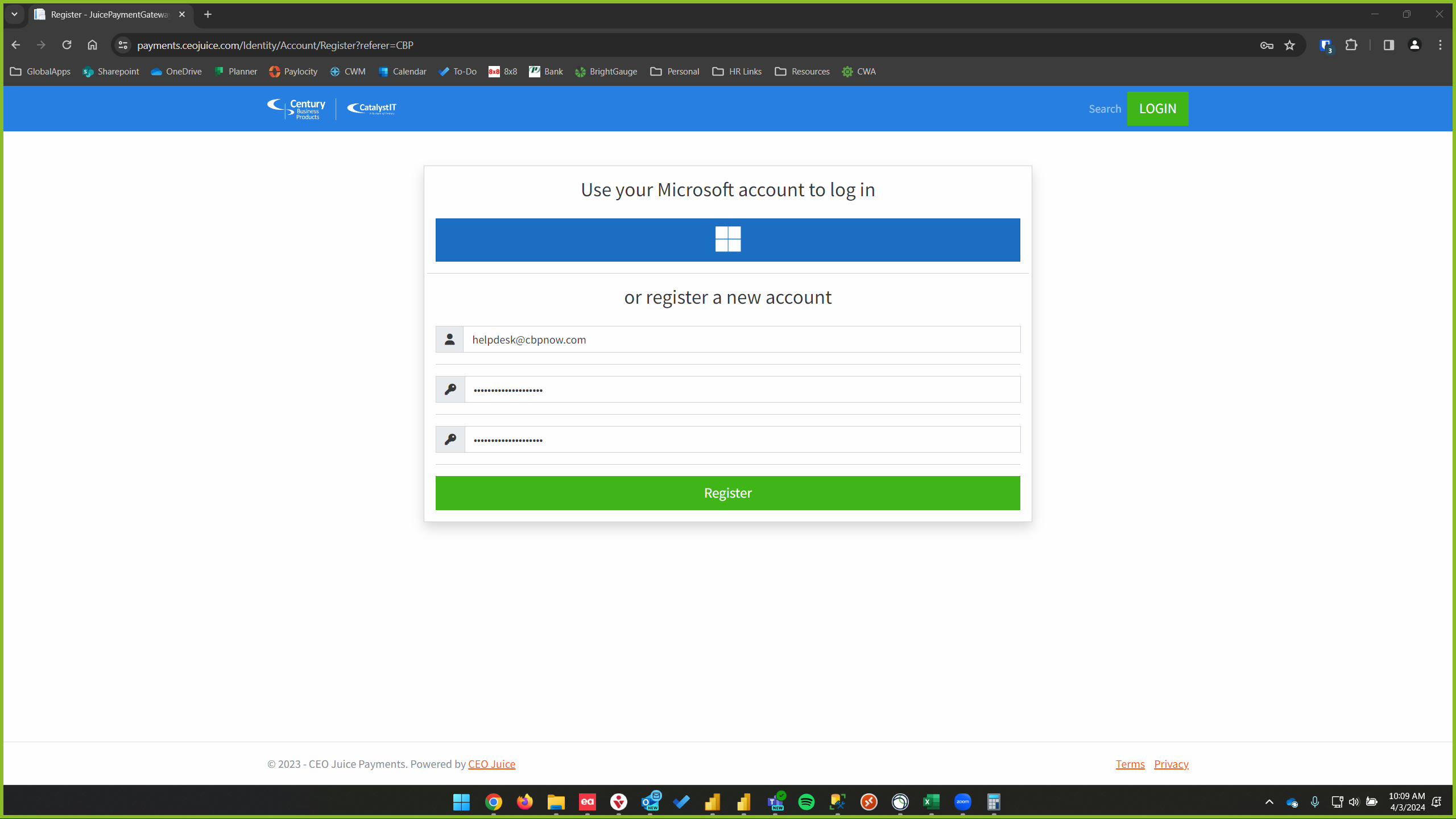
Register with Email Address Invoices are getting Sent to
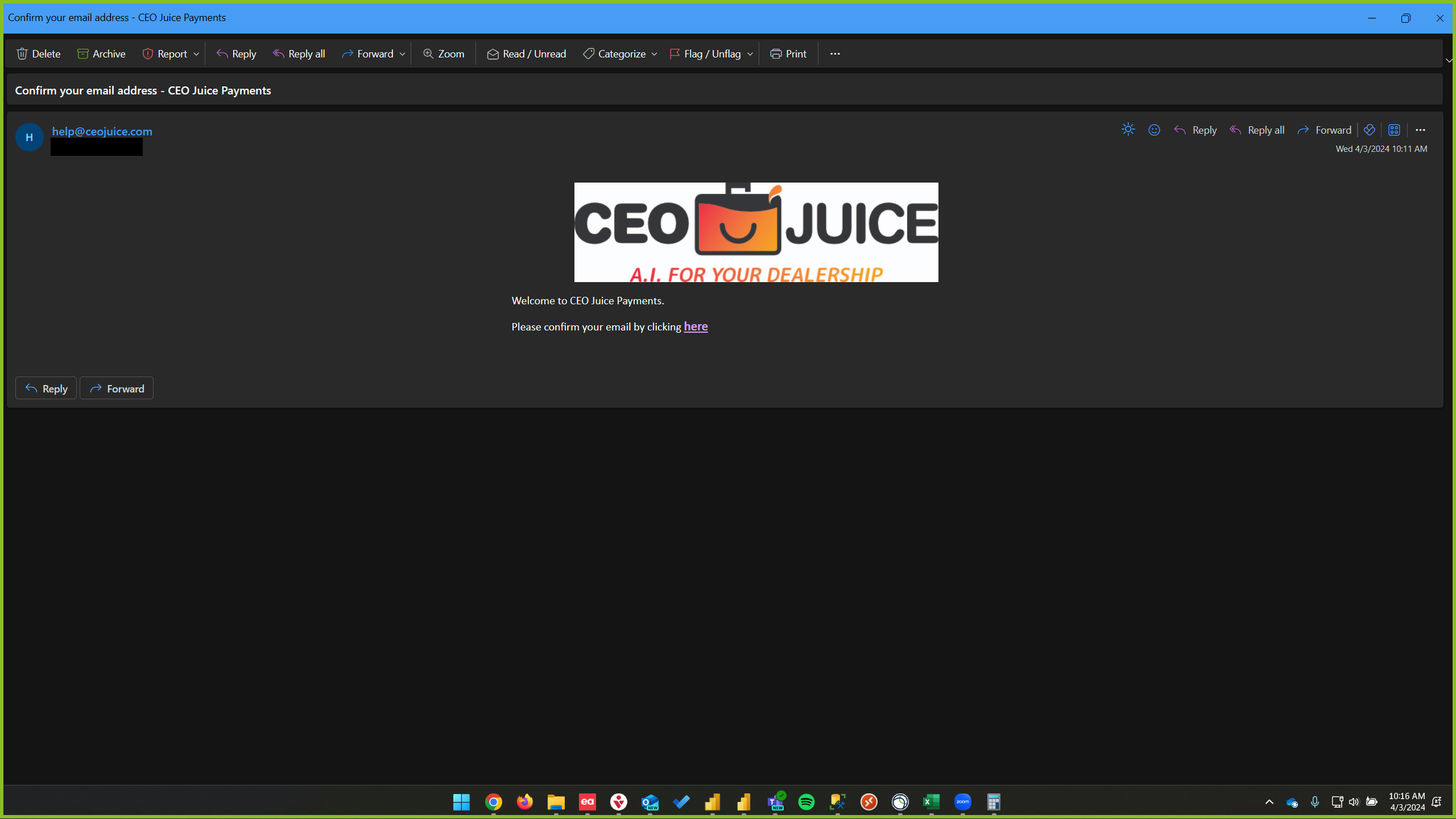
Verify that email address by clicking into the link that is sent from help@ceojuice.com
Navigating Payments Portal
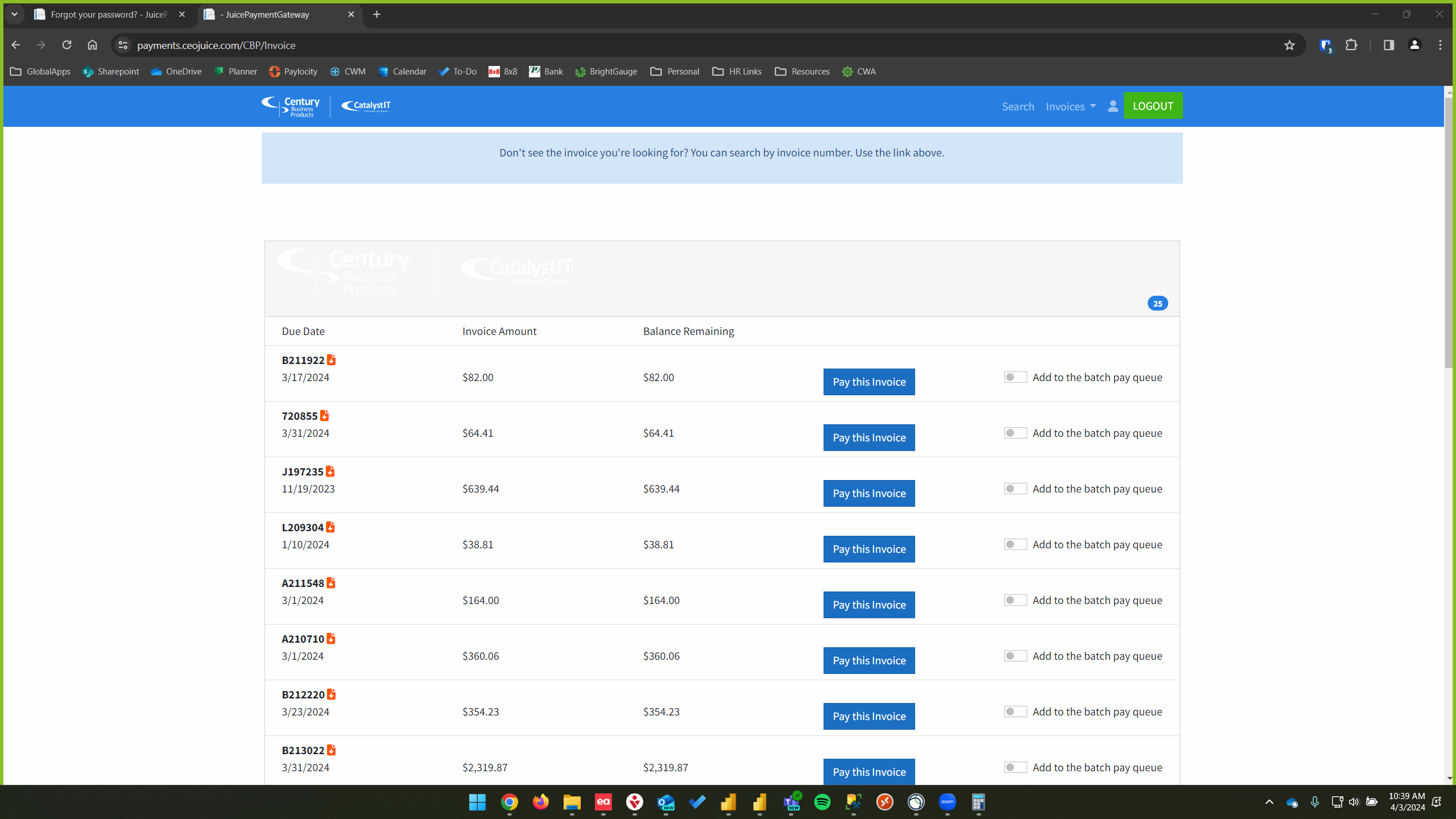
Open Invoices
You can view all open invoices that are associated with your email. You will only be able to view the invoices that are associated with the email address we have on file for your account. If you have any questions regarding what invoices you can view, please let us know. Only open invoices will be available to view. If you need a copy of an already paid invoice you can email us at helpdesk@cbpnow.com
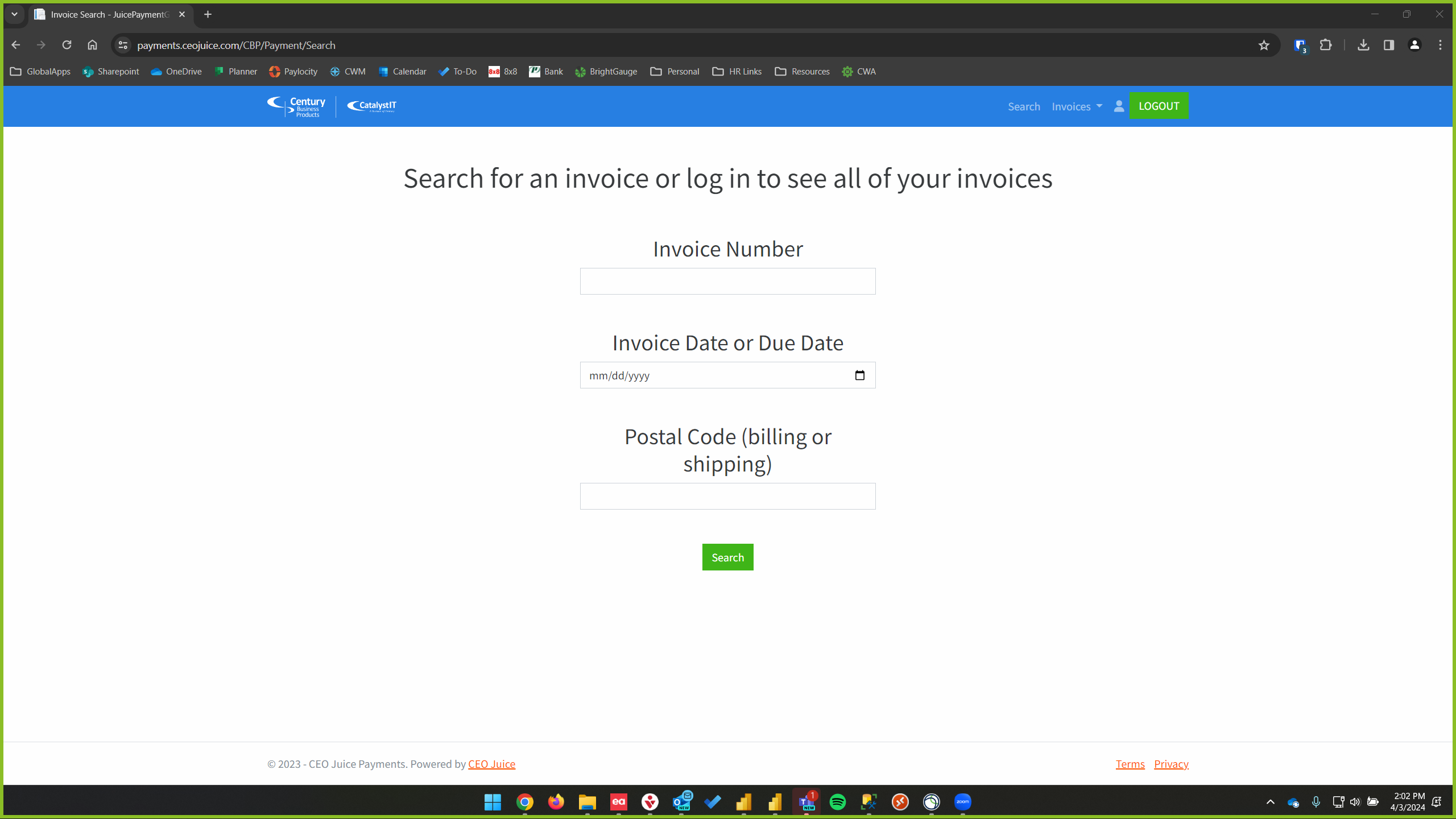
Invoice Search
If you do not have a login or are unable to view an open invoice, you can search for an invoice by Invoice Number, Date or Due Date, and the Postal Code.
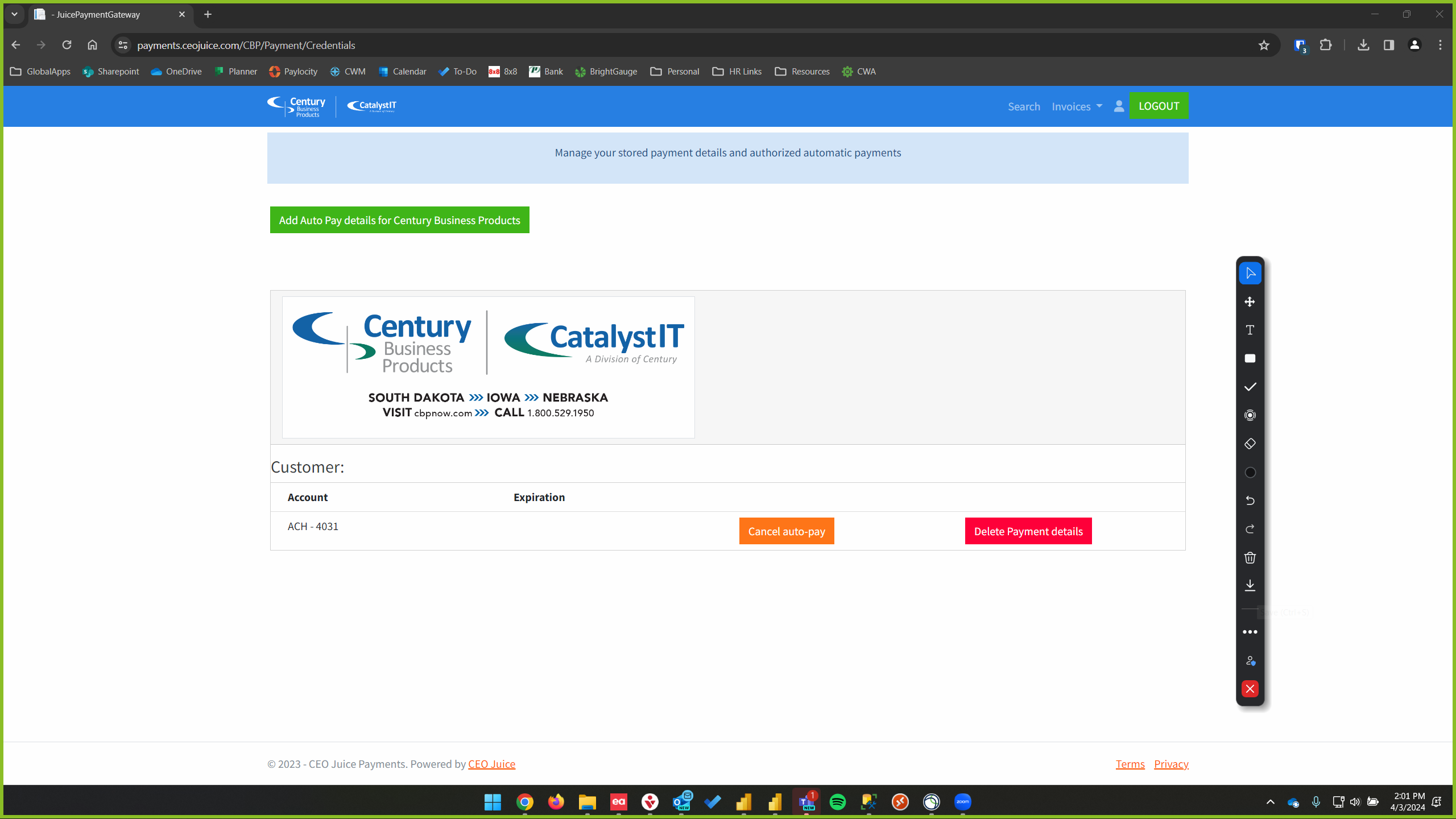
Saved Payment Details
You can add in payment details by going to the Saved Payment Details button at the main page. From here you will be able to add in payment details there as well as enroll in automatic payments.

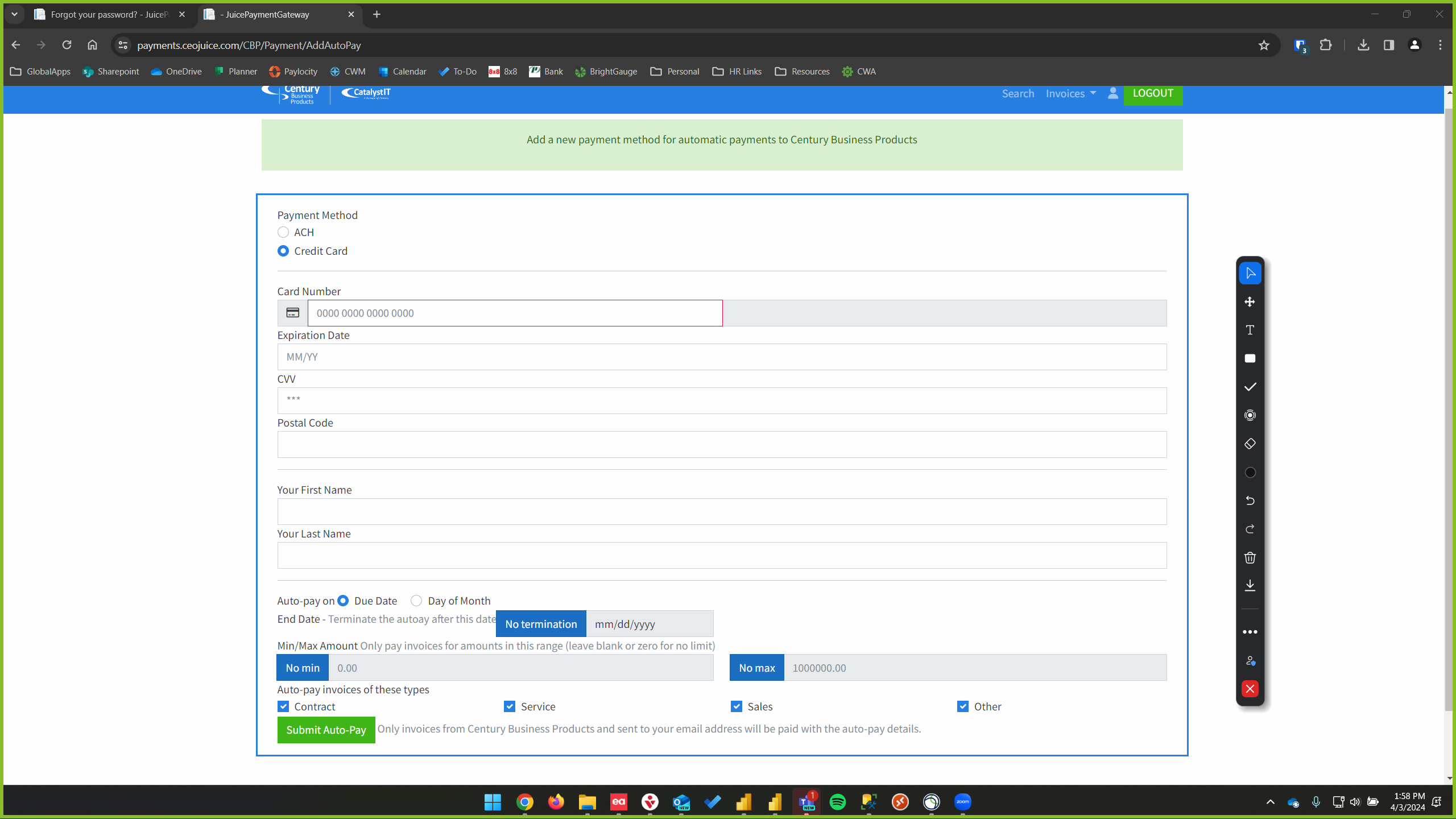
Automatic Payments
Automatic payments can be managed at any time yourself. If you need to add new payment information or delete old payment information, you can go into the Saved Payment Details and manage your payment information there.